As a CTO or tech leader, you know that successful software engineering requires a strong culture of collaboration and teamwork. With Keypup's unlimited users’ feature, you can foster this collaboration by inviting your entire team and stakeholders to the platform without worrying about limiting access. Here's why collaboration is key:
Encourages knowledge sharing: Collaboration helps to spread knowledge and expertise across the team. By sharing dashboards, metrics, and insights, team members can learn from each other and work more efficiently toward common goals.
Enhances transparency and accountability: Collaborating through dashboards helps to promote transparency and accountability. By sharing metrics and data, team members can see how their work impacts the overall engineering performance and can take ownership of their contributions.
Improves decision-making: Collaborative dashboards enable team members to make informed decisions based on real-time data. By having access to metrics and insights, team members can better understand the impact of their decisions and make more informed choices.
**Promotes alignment: **Collaborating through dashboards helps to align team members toward common goals. By sharing metrics and insights, team members can understand the priorities and objectives of the team and work together to achieve them.
Here's how you can invite team members and share your dashboards in Keypup:
1. To invite team members to the platform, simply click on the "Settings" button located at the bottom of the left navigation panel and select "Team Management".
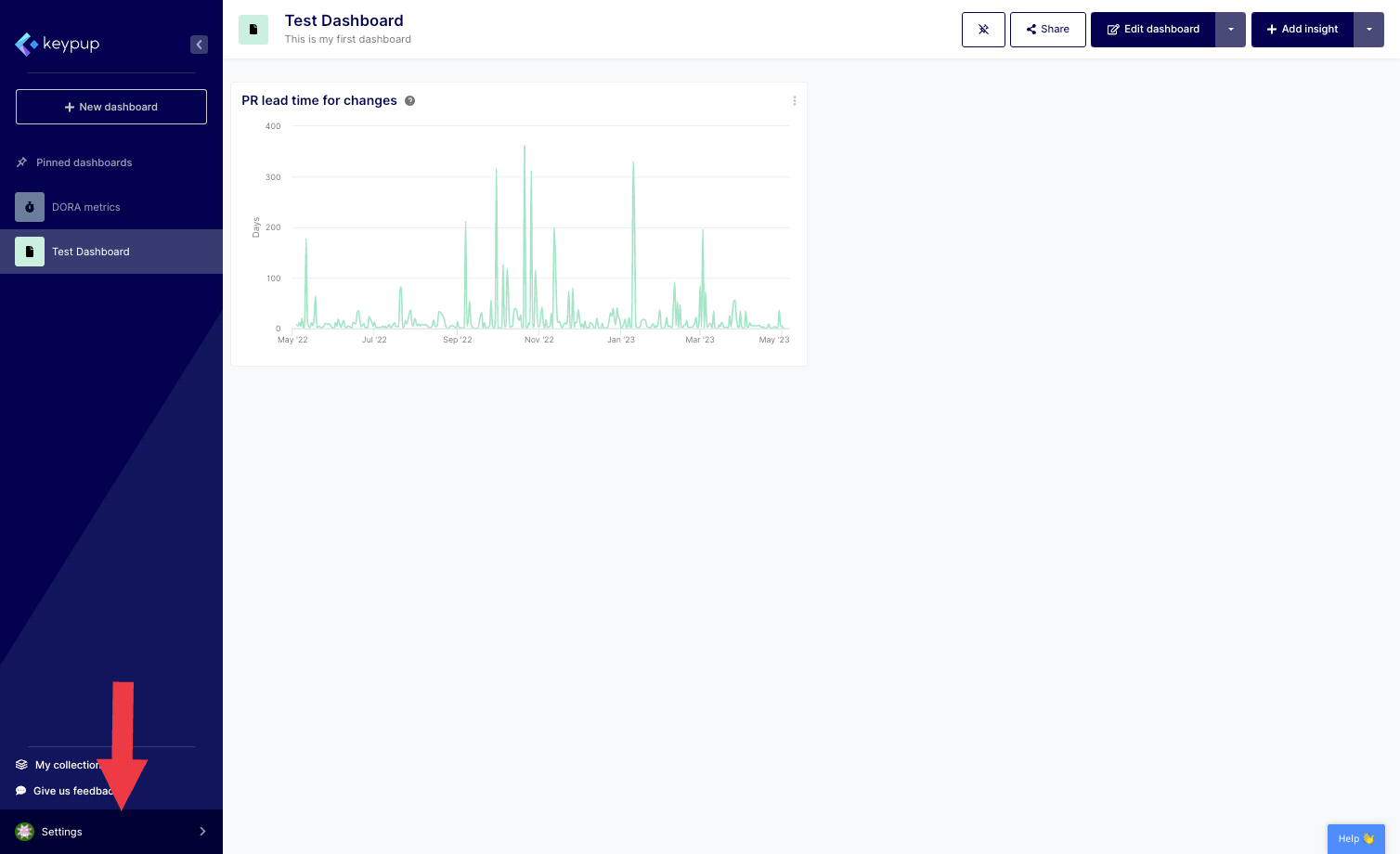
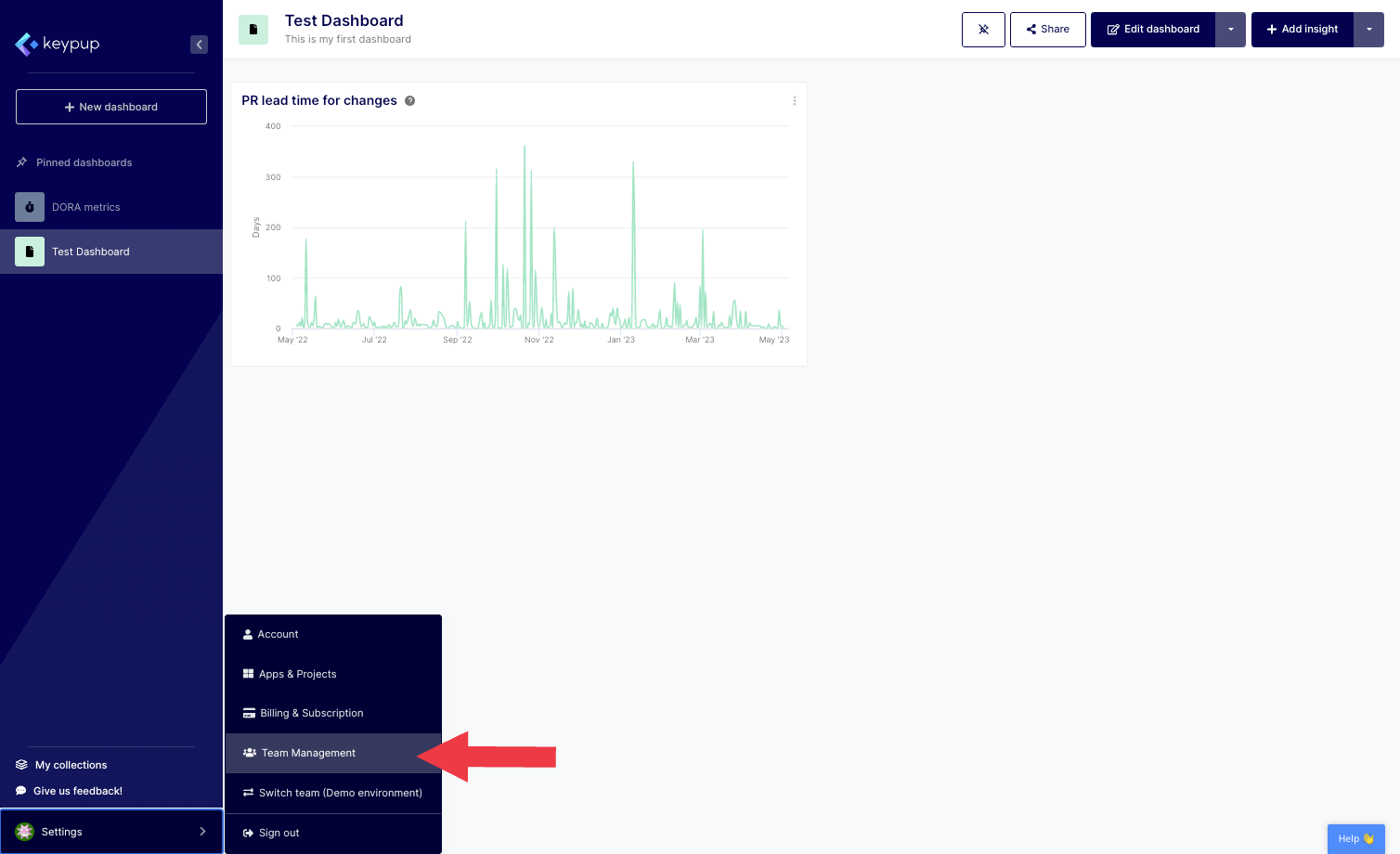
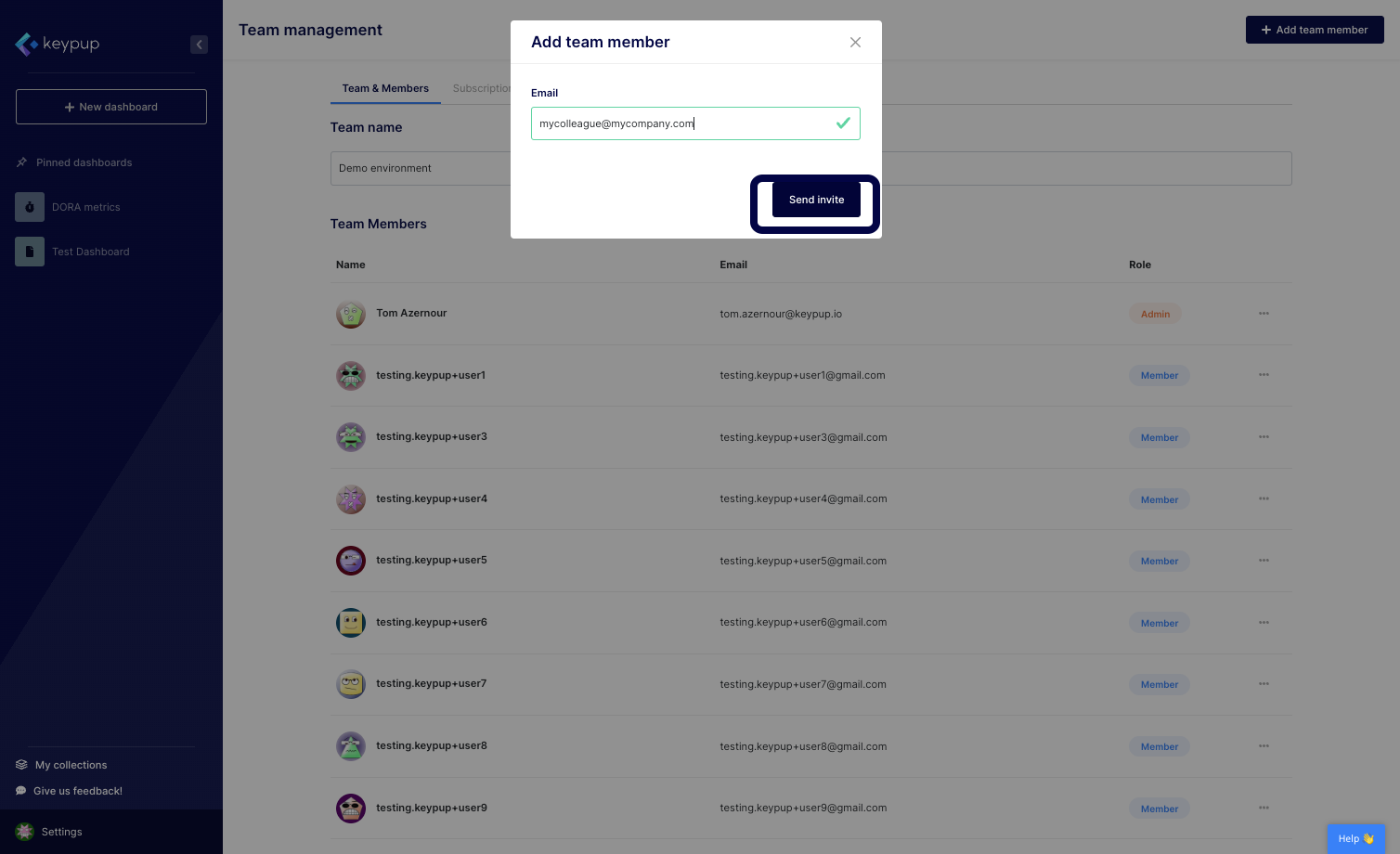
2. From there, click on the "Add team member" button located at the top right of your screen, enter your team member's email address, and click on "Send invite".
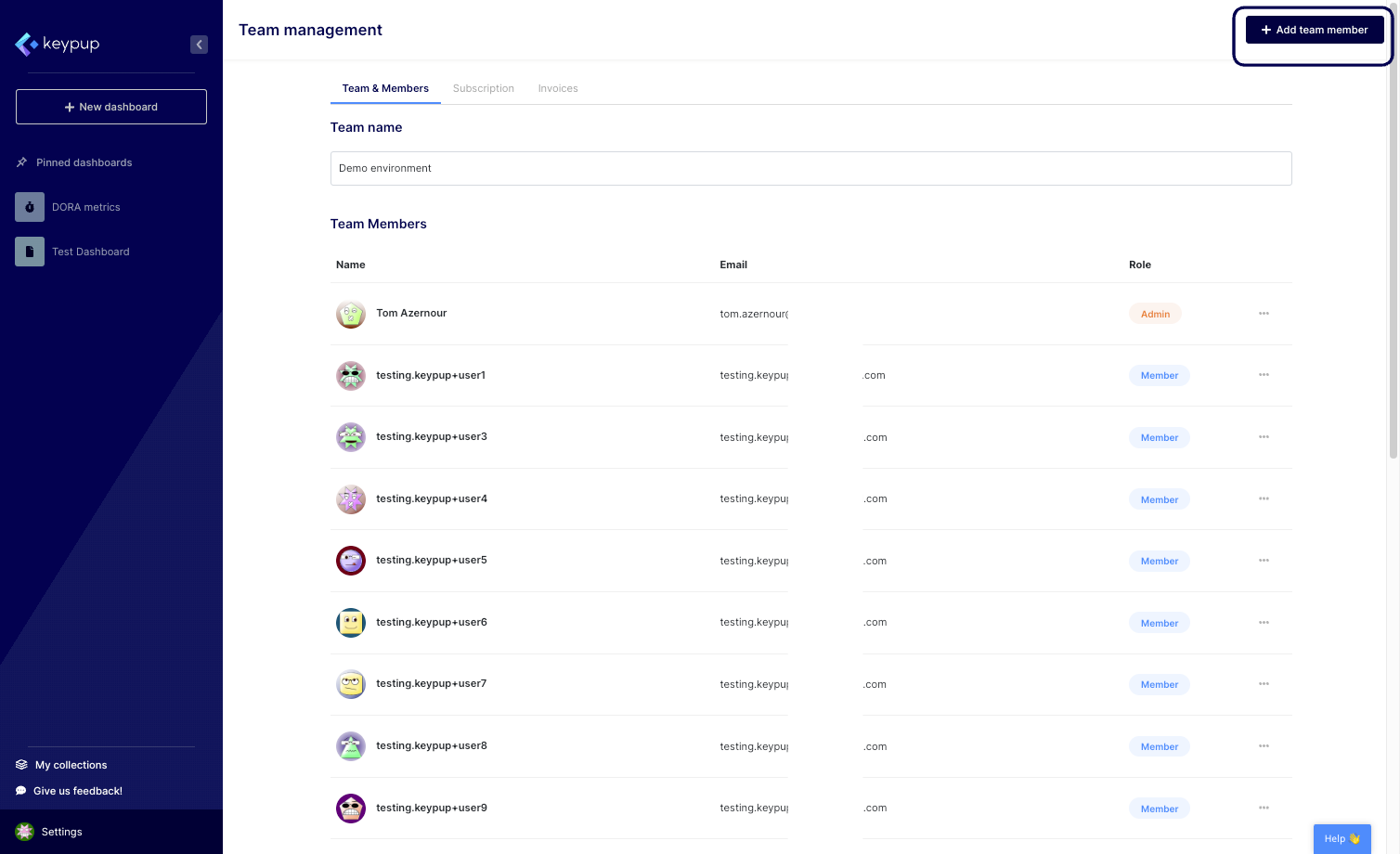
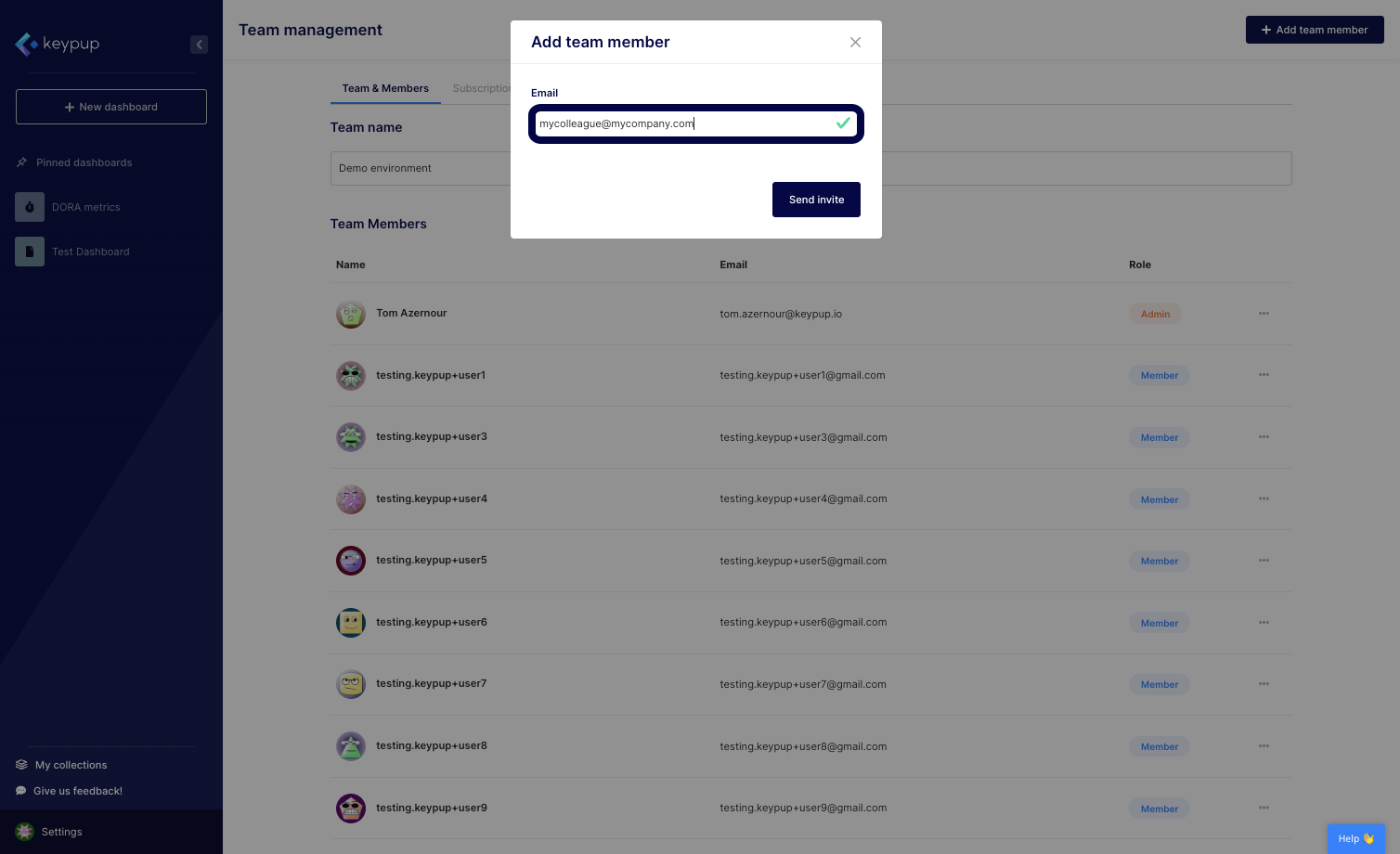
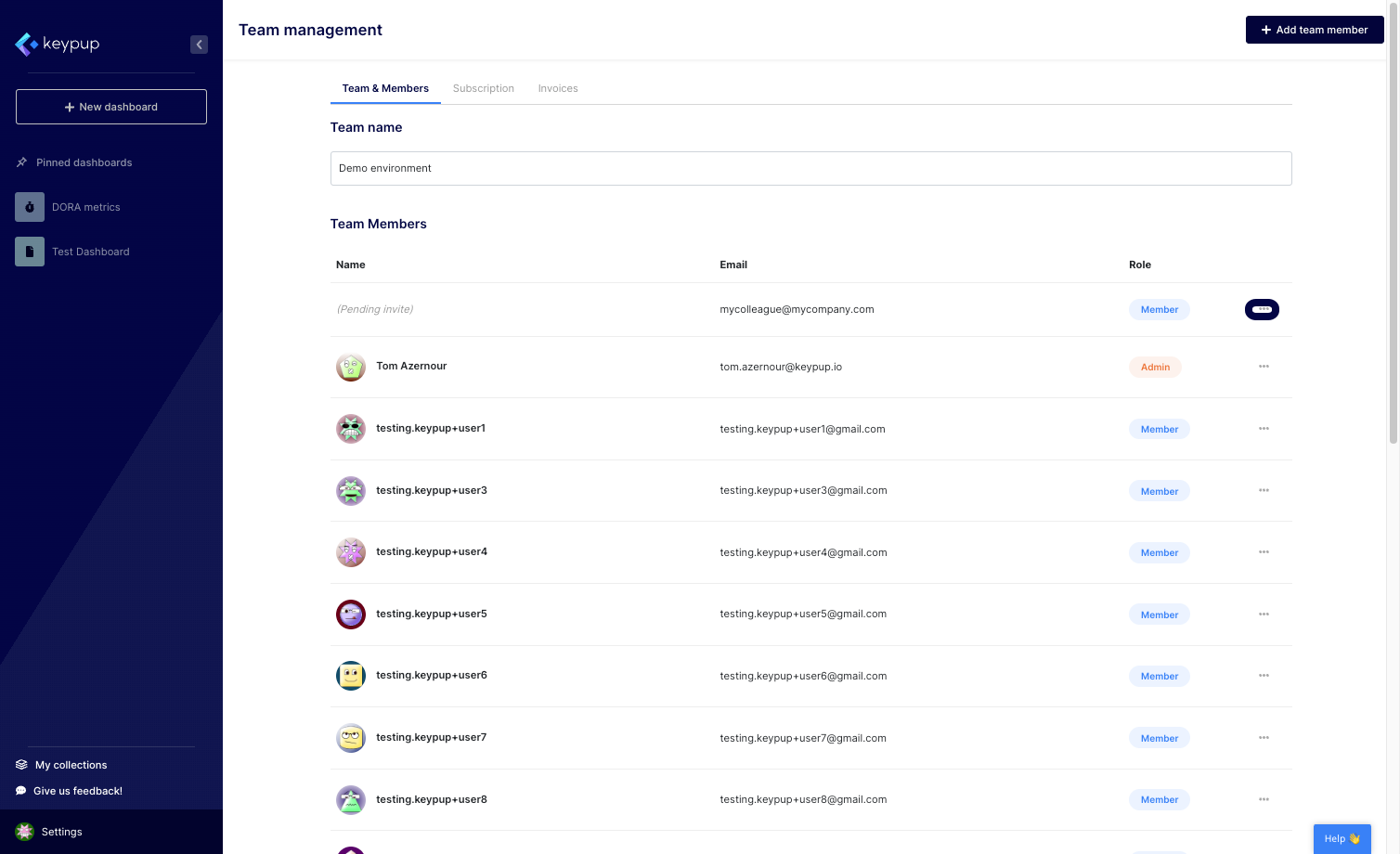
3. To access the invitation URL, click on the "..." button located near your stakeholder.
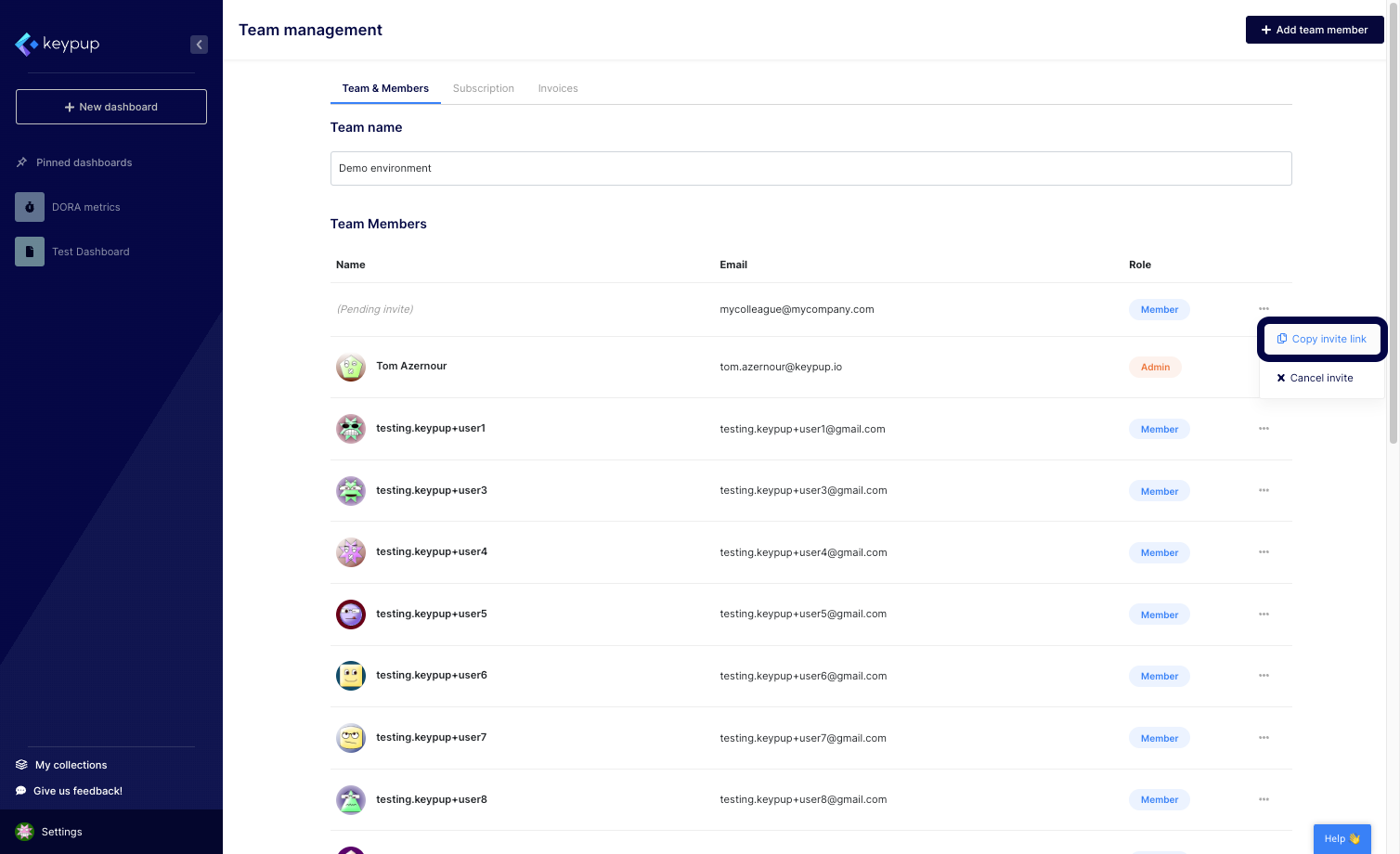
4. From there, you can copy the invite link to share it with your colleague or cancel the invite.
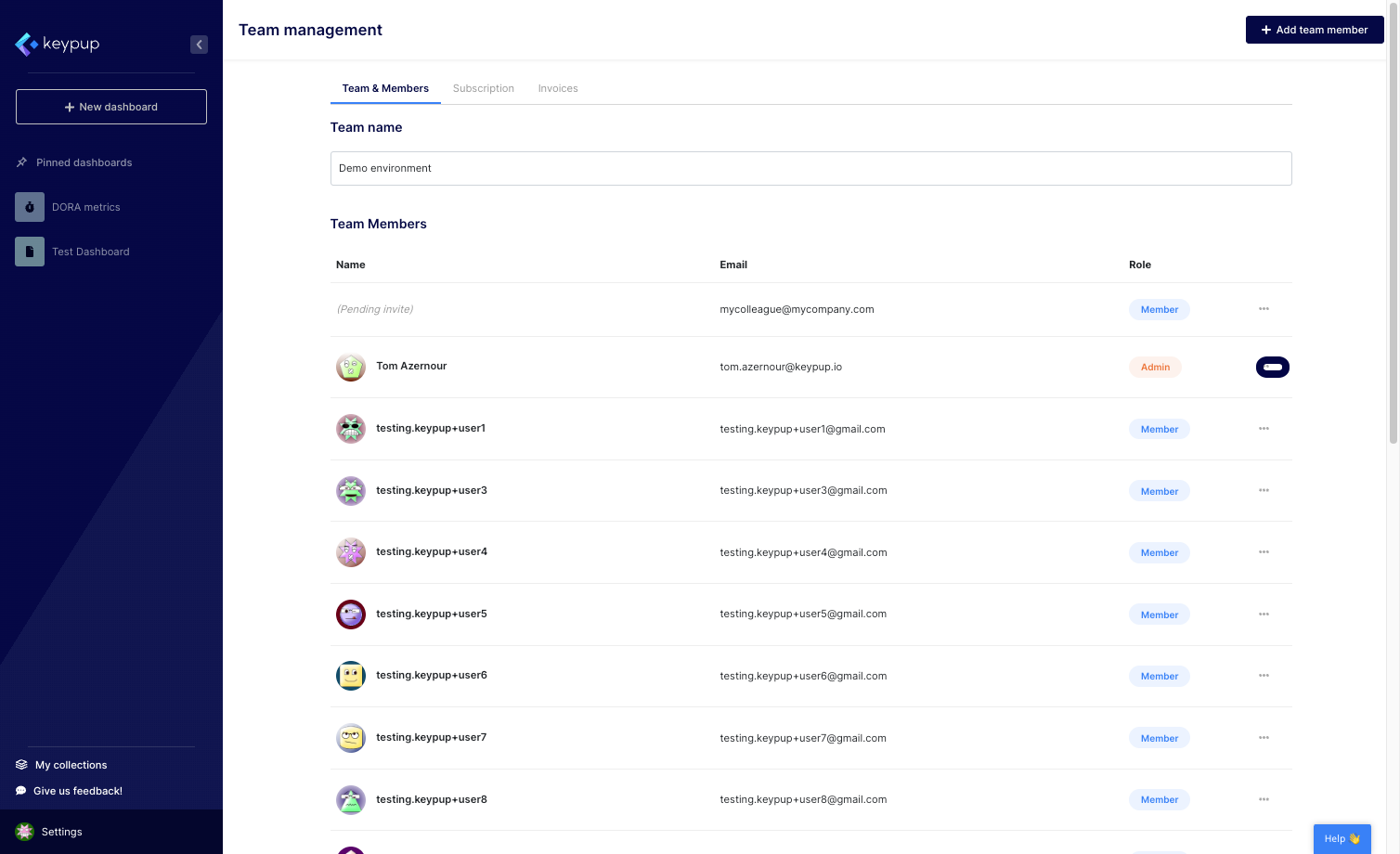
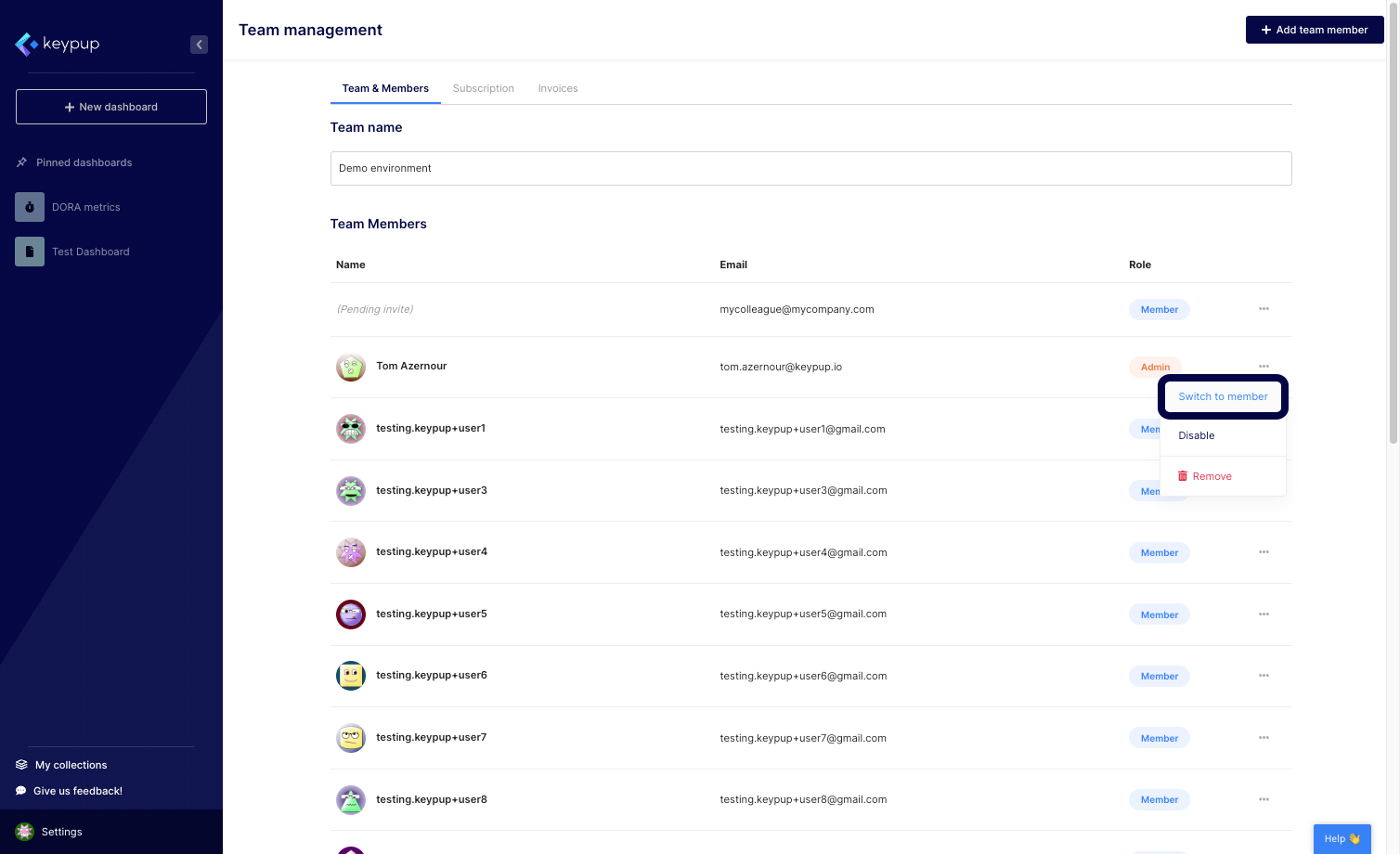
5. Once your team member is onboarded to the platform, you can change their access permission by clicking on the "..." button near their name and selecting the role of your choice or disabling/removing the user from the platform.
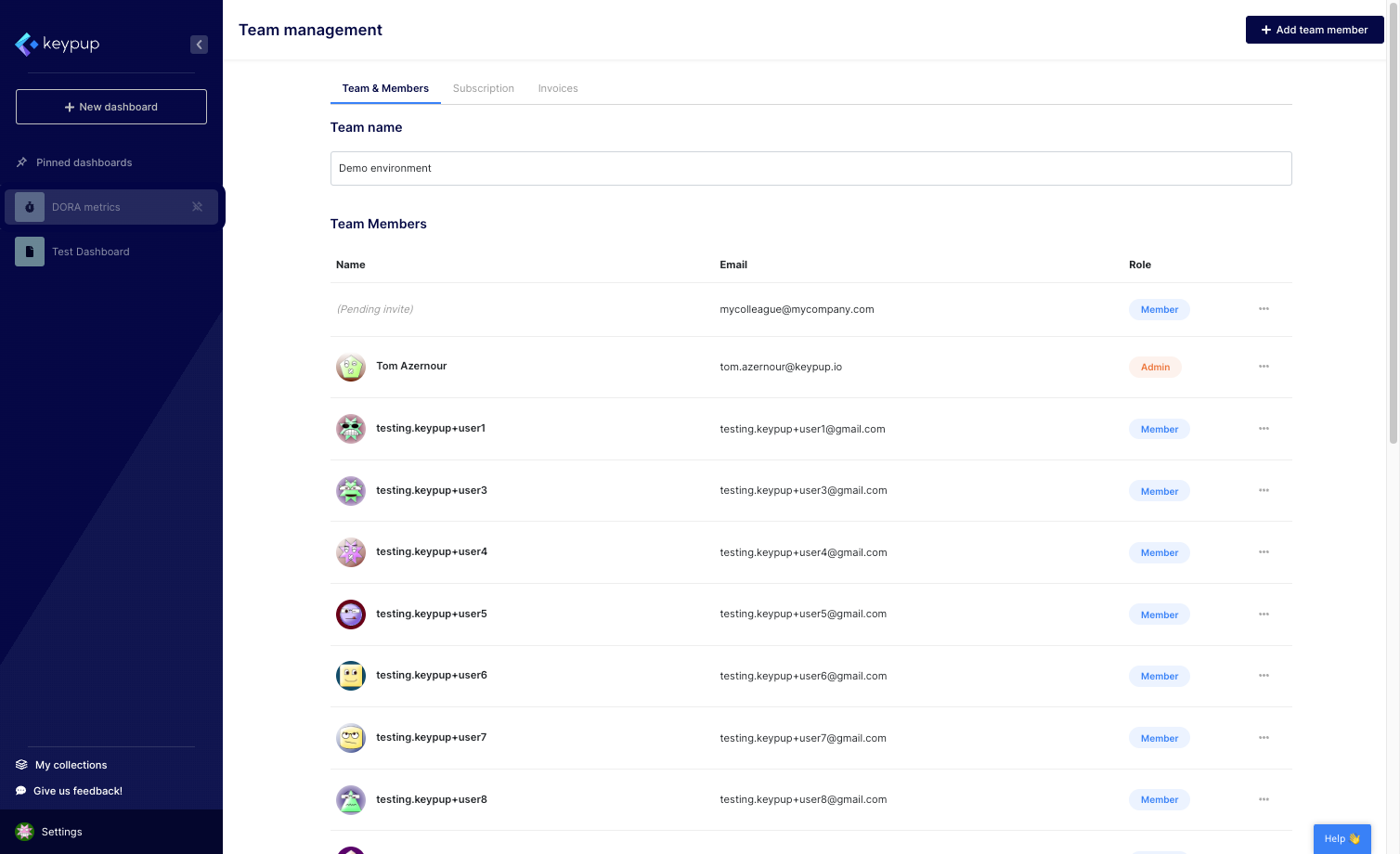
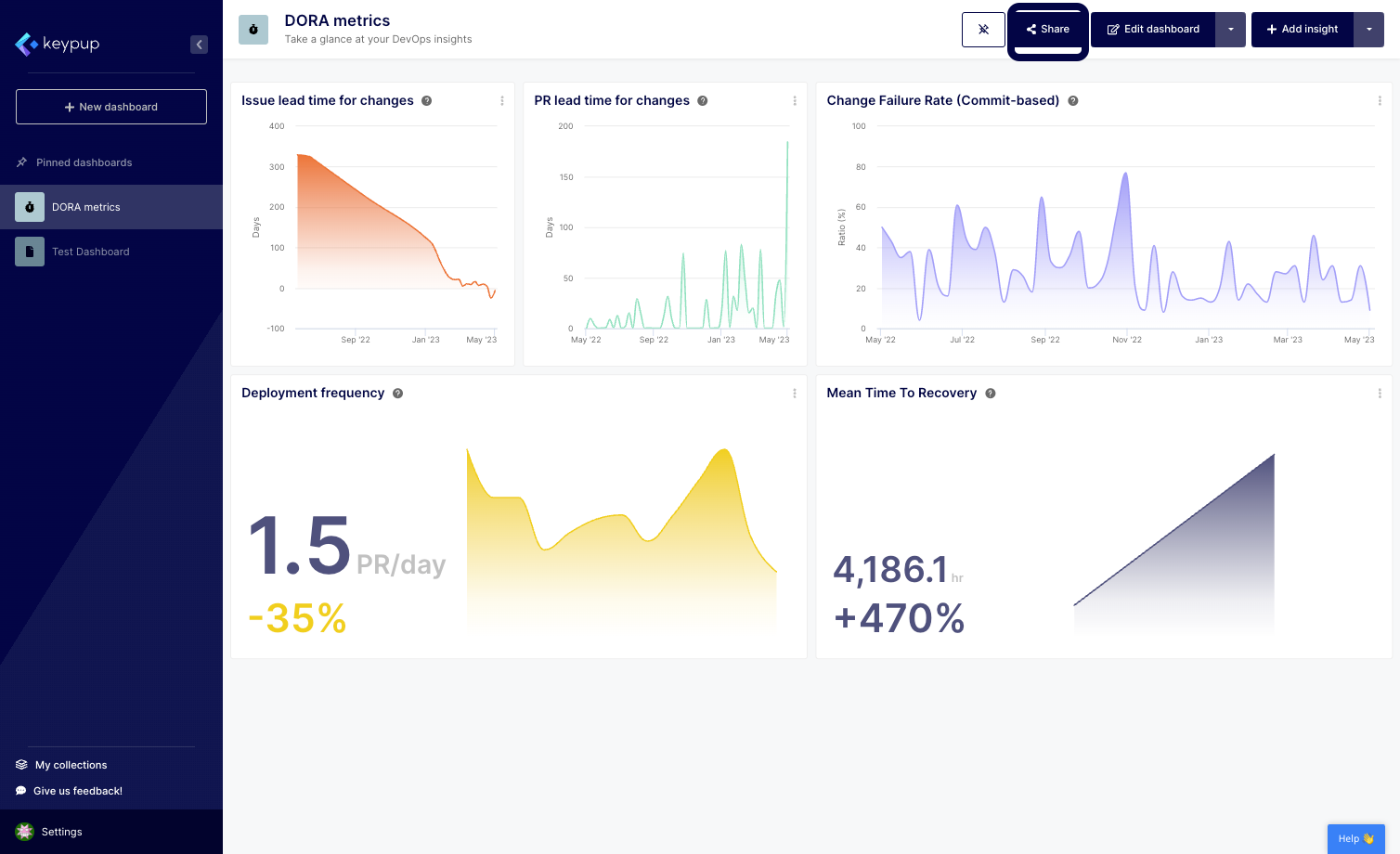
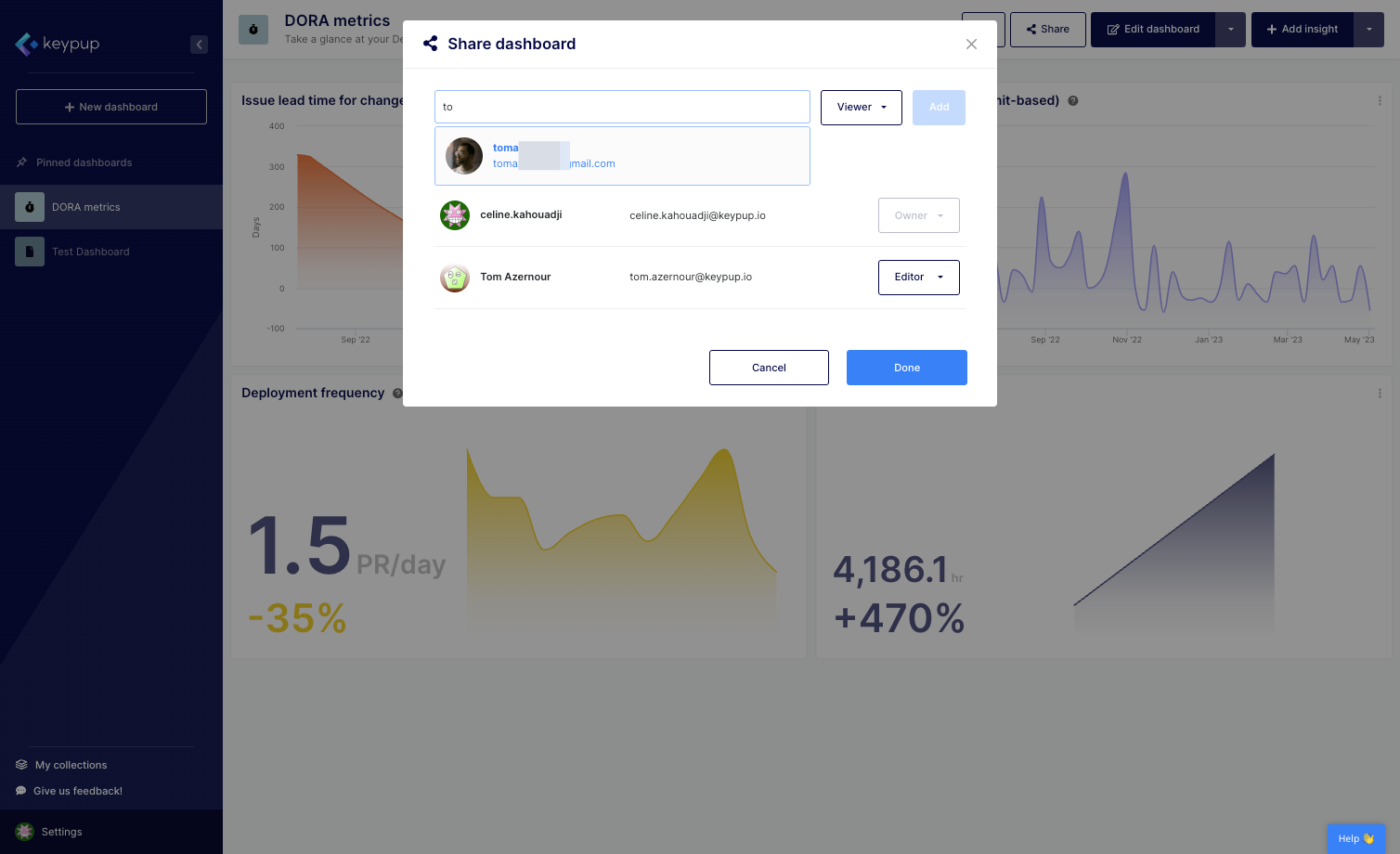
6. To share a dashboard, click on the dashboard of your choice from the navigation panel or your collection for unpinned dashboards, and click on the "Share" button located at the top right of all dashboards.
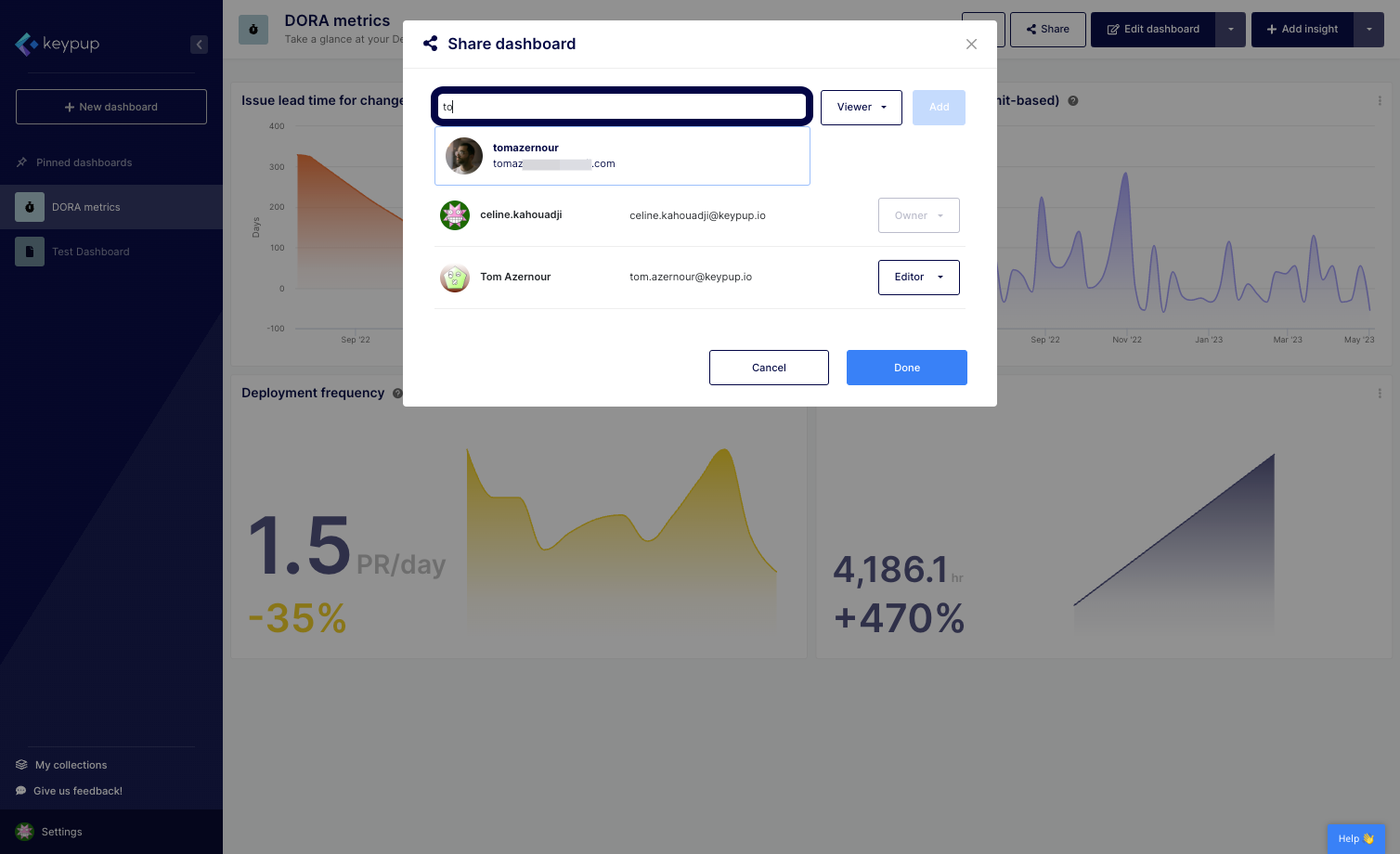
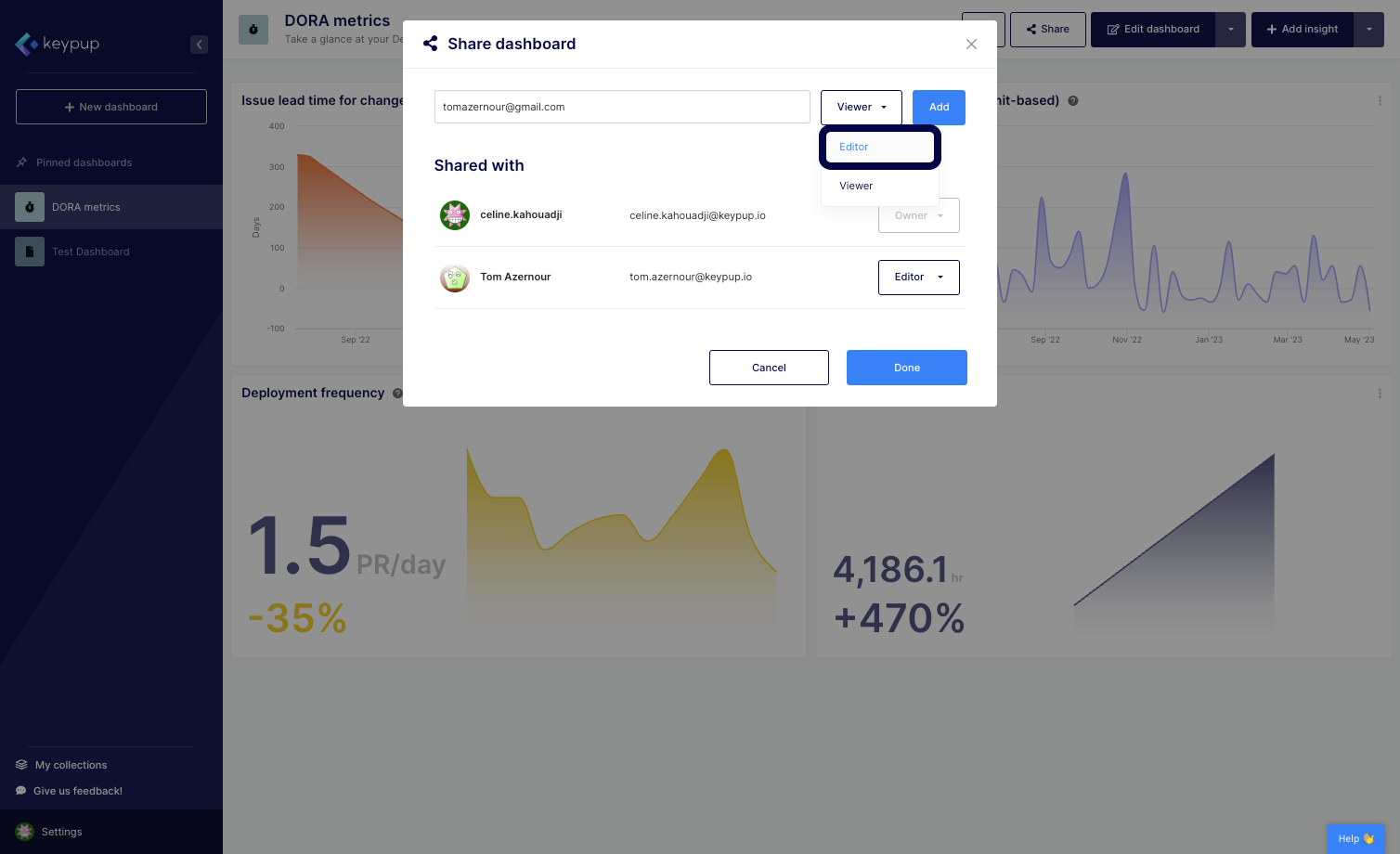
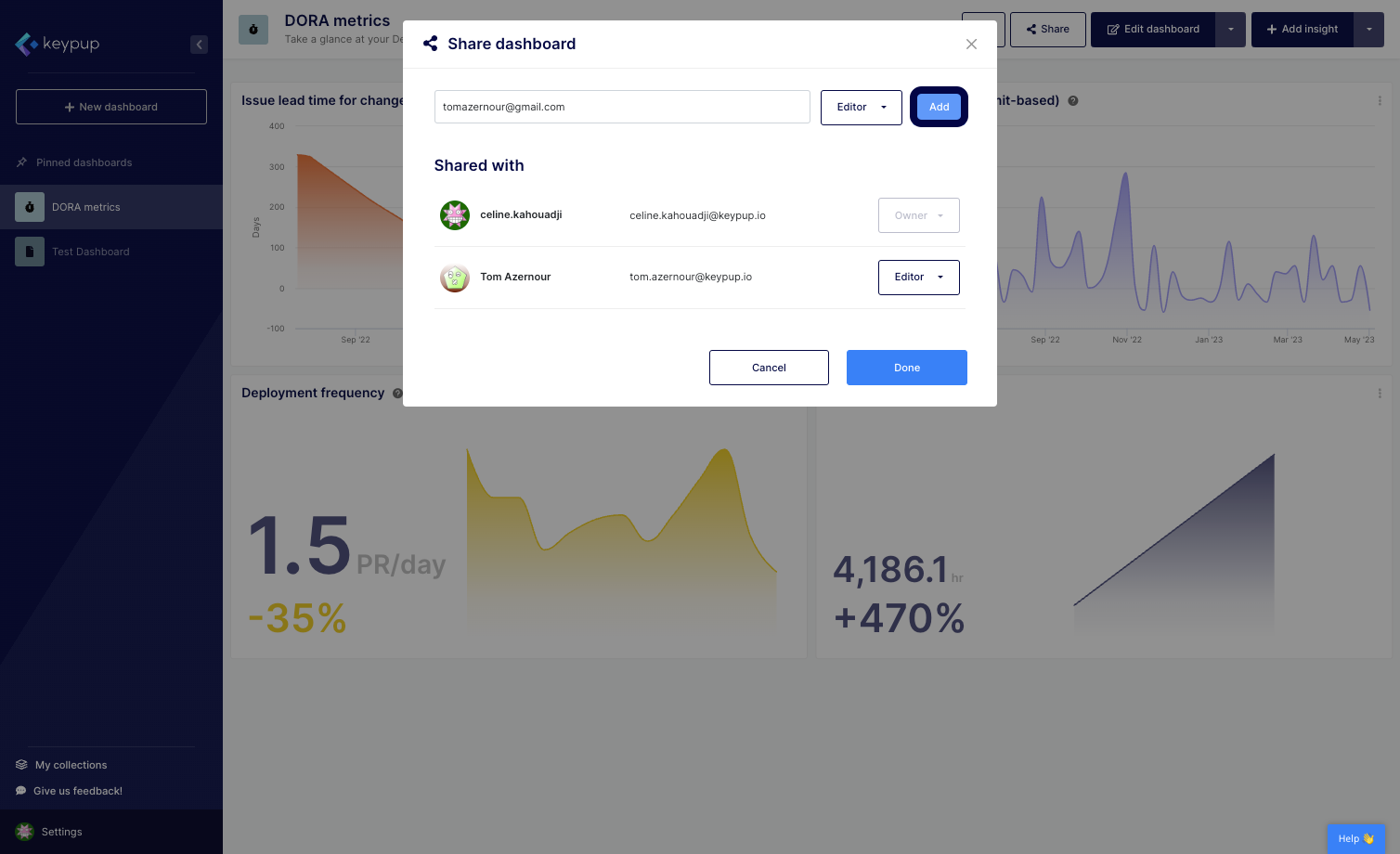
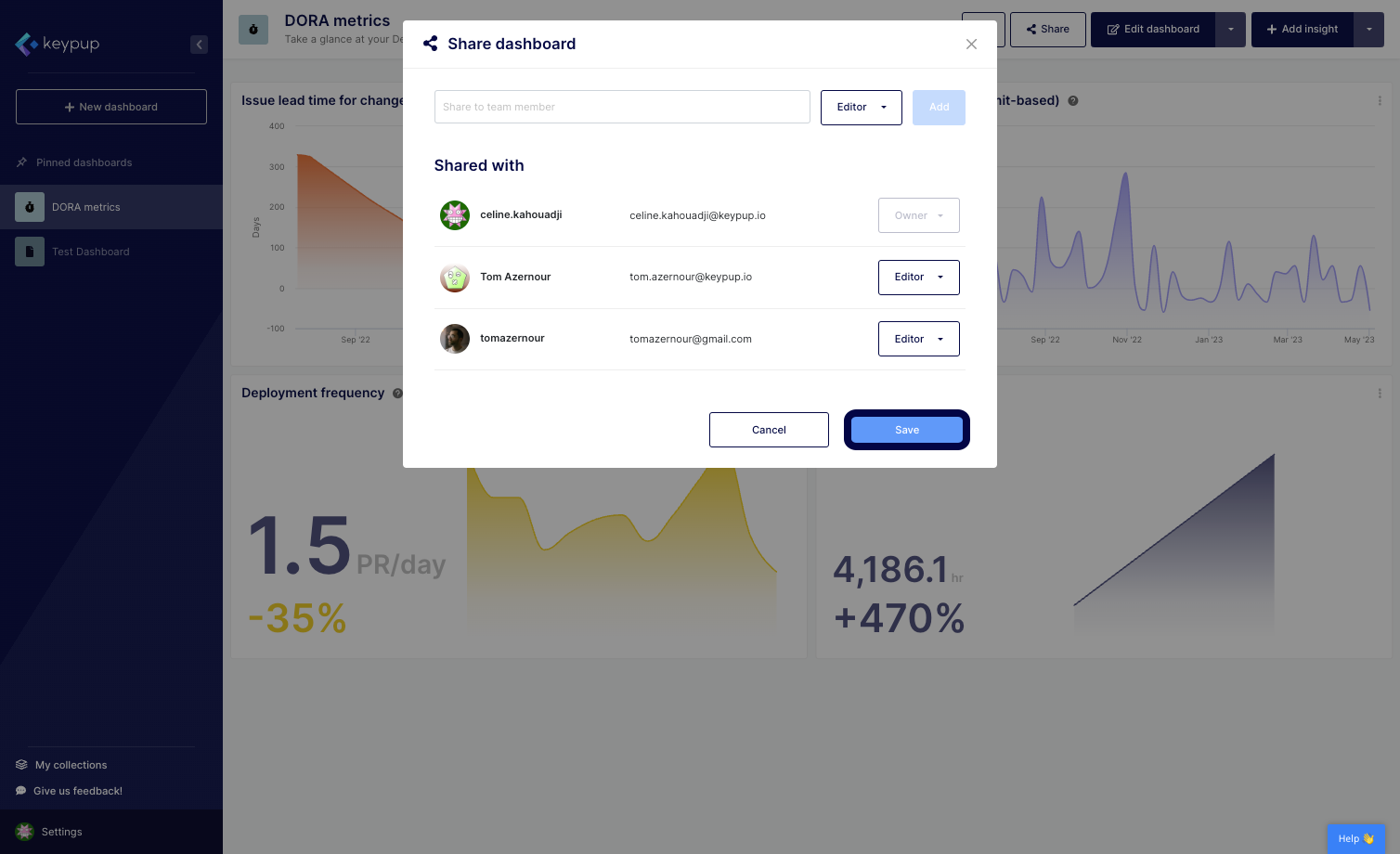
7. Search for the user you want to share the dashboard with, select the user, choose their permission level based on your sharing goal, and click on "Add" and "Save".
By fostering collaboration and teamwork through Keypup's unlimited user feature and flexible dashboard-sharing capabilities, you can ensure that your team is working toward common goals, making informed decisions, and delivering high-quality software engineering outcomes. Give Keypup a try today!