Agile software development methodology is an iterative process aimed to deliver customer value faster by delivering work in small batches. Whether you use Kanban, Scrum or any other approach, you should be familiar with boards made of cards. In Keypup, you can add cards to any dashboard or create Boards in order for you to keep track of specific tasks or projects. Keypup does not aim to replace project management tools but to grant you access to your development data from git repositories and project management all in one place.
Here's how you can display a Board or Card with Keypup in 4 easy steps:
Add a Card or a board to a dashboard
Click on any dashboard or in the Card collection found on the right-hand side of the navigation bar and select "Add Card" or "Add Board".
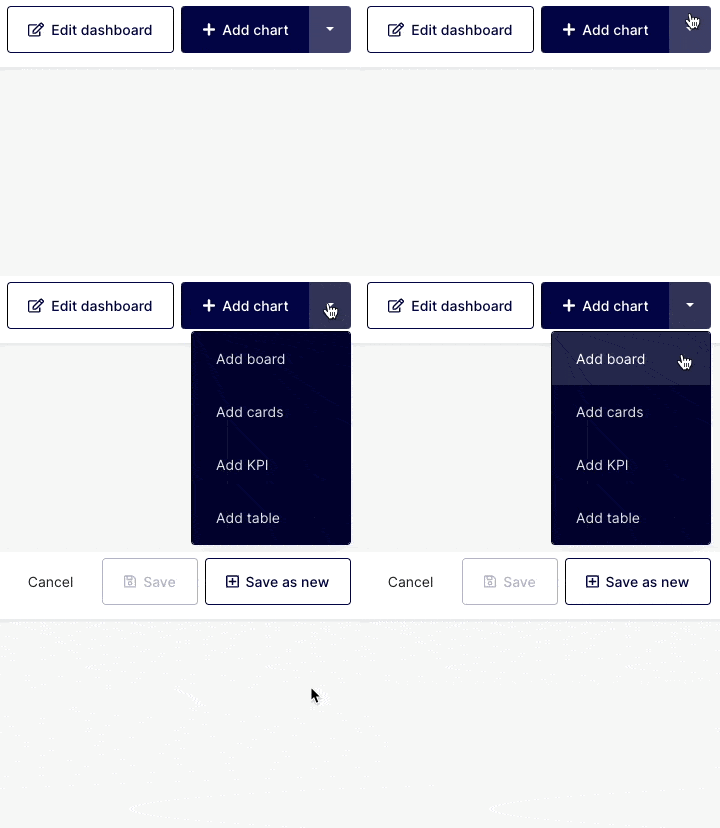
Choosing Boards or Cards?
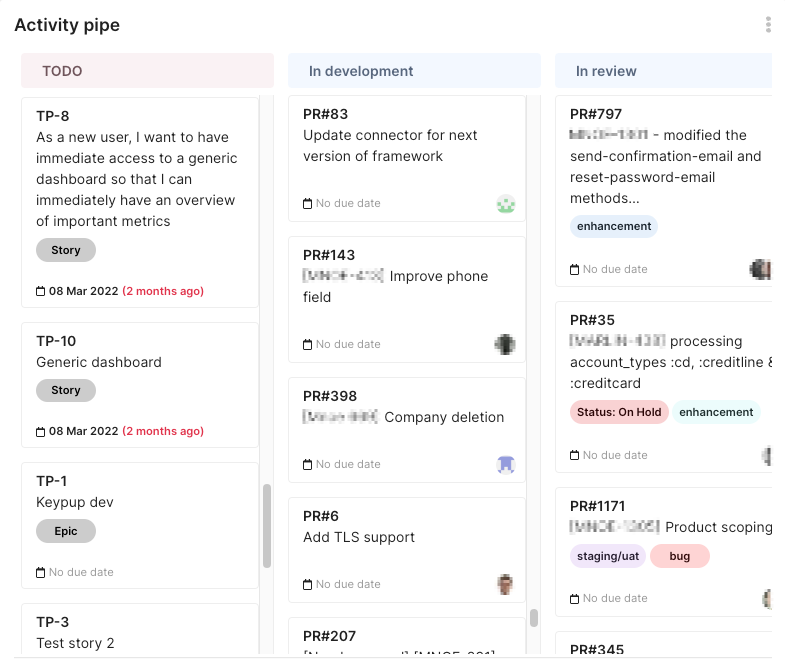
- Boards: Boards are often used to showcase items (Pull Requests, Issues, Bugs…) assigned to specific projects or users and organized based on the priorities set by the organization (due date, project significance, etc.). It helps visualize a series of items and see them organized by stage or date.
- Card: Cards are a more detailed view of a particular item placed on a board. Their role is to provide granular information at a project or task level for the team or individuals.
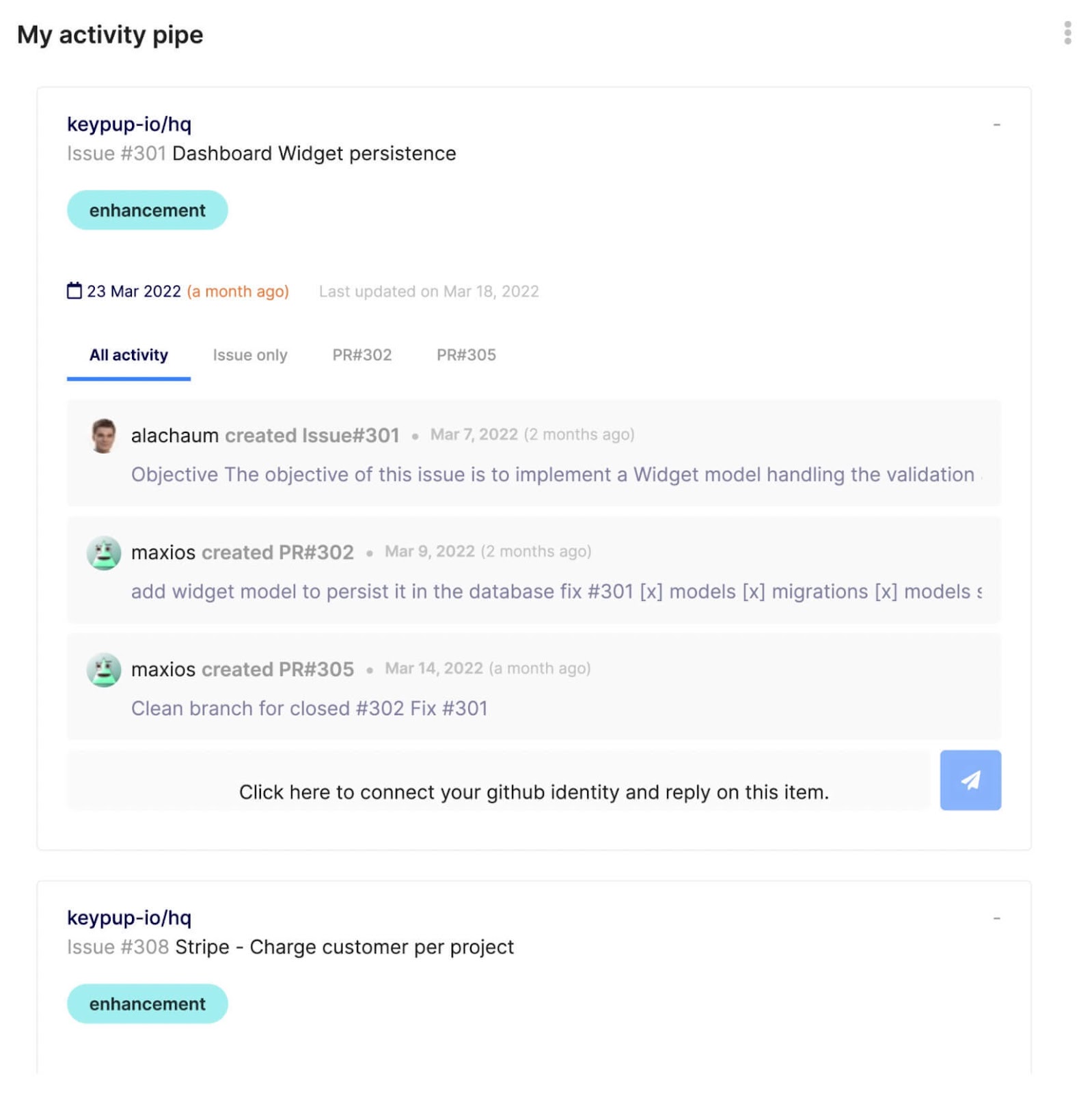
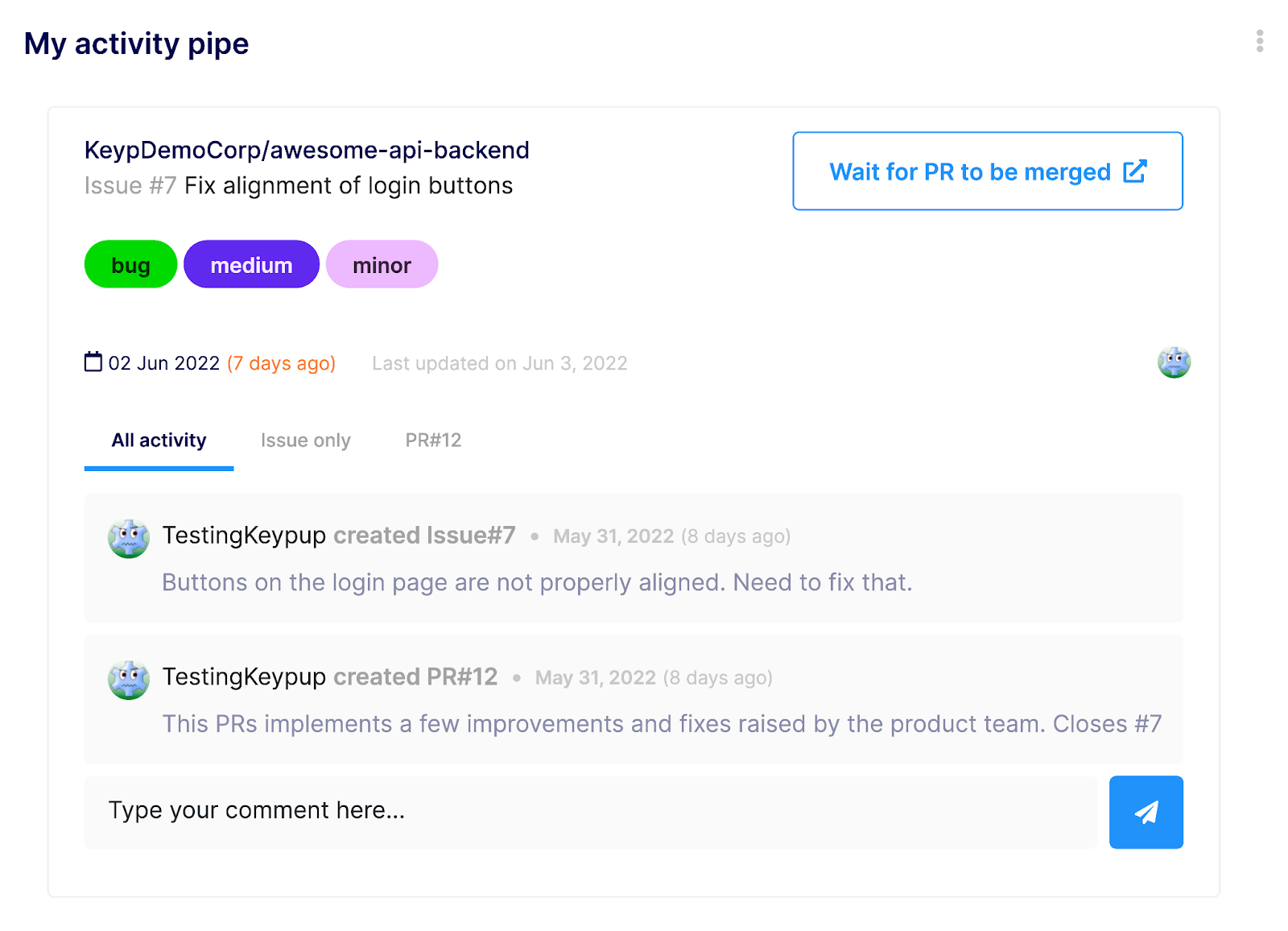
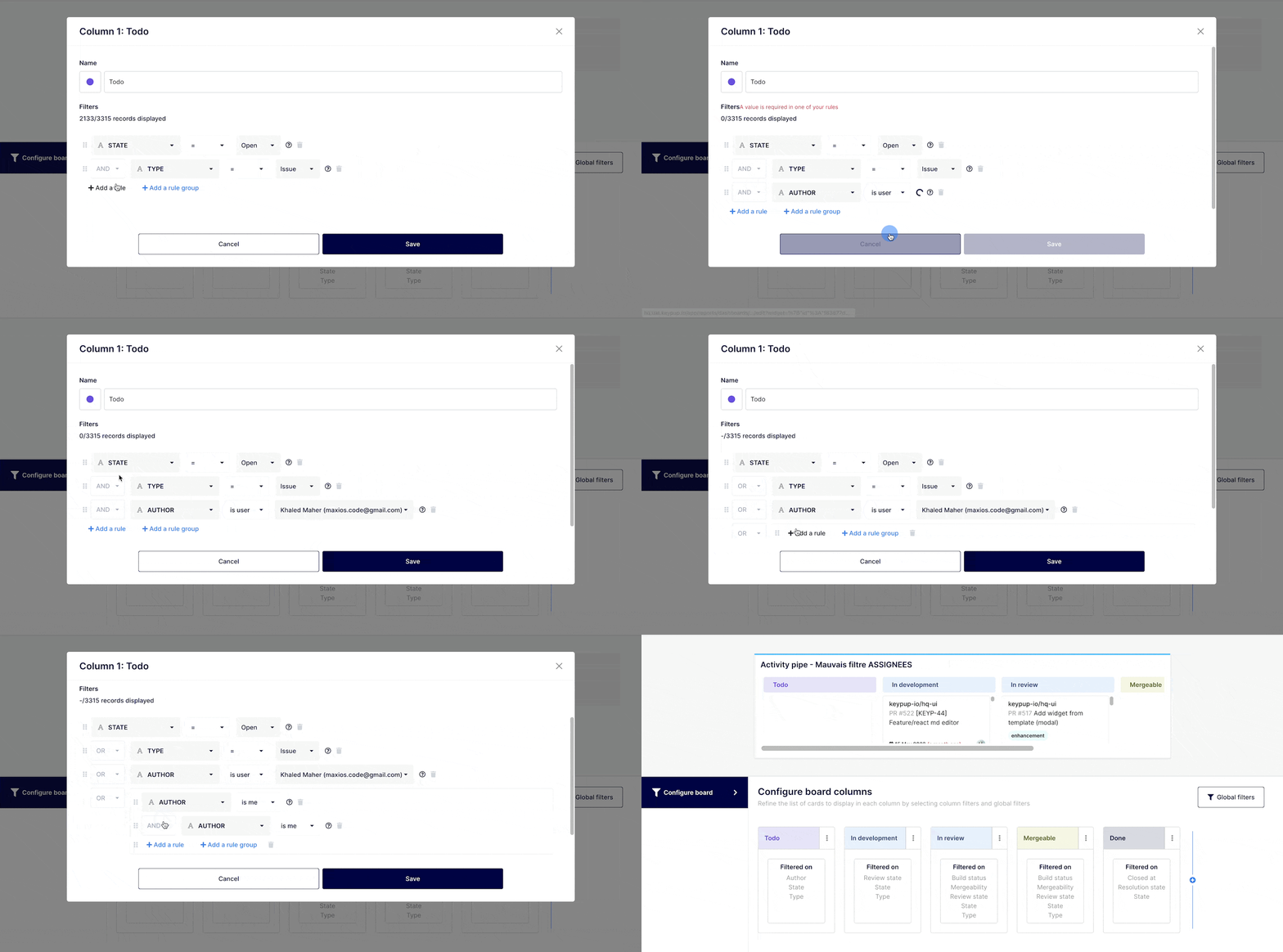
Boards and cards are created using "AND" / "OR," commands. Cards have 1 filter set only while Boards have filters for each column in addition to a global filter at a board level.
You can narrow down further a view at a board level by applying an additional filter (not applicable for cards). You can use this option, as an example if you want your entire team to use the same board but you want to see what is assigned to a particular team member.
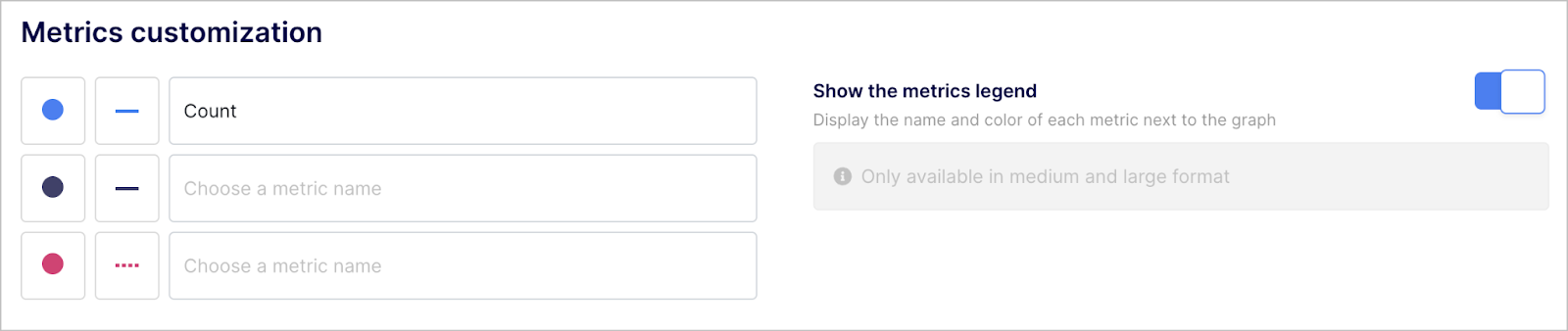
Customize your Chart / Board "look & feel" (optional)
Customization of the boards and cards will be automatically suggested. Although it is not necessary, you will have the ability to further customize the look and feel of your boards and cards.
Any questions or tips you would like to share? You can contact us directly in the chat from your Keypup interface or use this contact form.